Managing a project's S3 object store allocation
Management of a project's EIDF S3 Service object store allocation and its S3 accounts and access permissions is done by project leads.
Object store allocations, S3 accounts and access keys
An object store allocation is a portion of the EIDF S3 Service storage allocated for the exclusive use of a project. A project's S3 buckets are created within this object store allocation.
Each S3 bucket, and the objects within that bucket, is owned by an S3 object store account (hereon called an S3 account or account). S3 accounts are created by a project lead.
Each account has a storage quota, the maximum amount of storage, from the project's object store allocation, that the account can use. The storage quota is defined by a project lead. The sum of all account quotas is limited by the total storage quota of a project's object store allocation.
Each account also has a bucket quota, the maximum number of buckets allowed for the account. The bucket quota is also defined by a project lead.
To create and access buckets, users need both an access key and a secret. An account can have zero or more access keys, each with an associated secret.
The number of buckets that a user can create and volume of files they can upload is constrained by both the bucket and storage quotas defined for the account associated with the access key used by the user.
Request an S3 allocation
An object store allocation is the storage allocated within the EIDF S3 Service for a specific project.
You can request an EIDF S3 Service object store allocation for your project via the EIDF Helpdesk.
View and manage object store allocation
You can view and manage your project's S3 object store allocation via the EIDF Portal:
- On the EIDF portal's Your Projects page, click your project.
- Your select project's page will appear.
- If using the portal's default project view, view 'S3 Allocation', else, if using the portal's new project view, click 'S3 Object Storage'.
- The 'S3 Allocation' (default portal view) or 'S3 Object Storage' (new portal view) section will show the following:
- Quota: Project's object store allocation (portal's default view only).
- Accounts allocation: Project's object store allocation and current usage (portal's new project view only).
- For each S3 account:
- Name: Account name.
- Quota: Maximum amount of storage available to the account.
- Max Buckets: Maximum number of buckets allowed for the account.
- Access Keys: Access keys associated with this account.
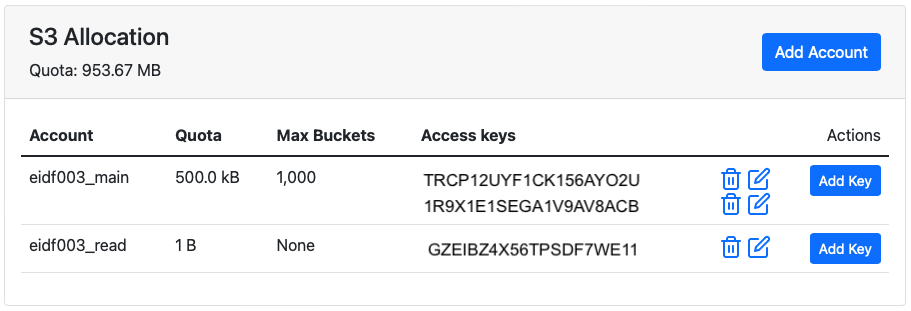
Create an S3 account
To create an S3 account, within the 'S3 Allocation' (default portal view) or 'S3 Object Storage' (new portal view) section:
- Click Add Account (default project view) or Create Account (new project view).
- A 'Create S3 Object Store Account' page will appear.
- Enter:
- Account name: Only letters, numbers, and underscore
_, are allowed. - Display Name: Alternative name for display. Spaces are allowed.
- Maximum number of buckets allowed: Select:
- None: If selected, then this account cannot have any buckets.
- Unlimited
- Or choose a limit: If selected, enter the number of buckets in Number of buckets.
- Quota: Maximum amount of storage available to this account. Enter both the number and the storage unit, one of 'B', 'kB', 'MiB' (MB), 'GiB' (GB), or 'TiB' (TB). The minimum quota is 1B (i.e., 1 byte).
- Account name: Only letters, numbers, and underscore
- Click Create Account.
The account will be created along with an access key and associated secret.
Account quotas and project S3 storage quota
You cannot create an account with a quota greater than the project's total S3 storage quota.
Troubleshooting: Failed to create account: name already in use
S3 account names must be unique within your project.
This error can sometimes arise if you try to reuse the name of an account that you have previously deleted. Accounts are never deleted but are marked as 'retired'.
It may take a little while for the account to become available.
Refresh the project page to update the list of accounts.
Using S3 accounts that cannot create buckets for collaboration
One could create an S3 account that has the maximum number of buckets set to zero, and with a minimum storage quota of 1B, and so cannot create any buckets. Such an account cannot be used to create buckets for your project. Why might such an account be useful?
One scenario is for collaboration with another project which also has buckets hosted within the EIDF S3 Service. Rather than your collaborator giving you an access key and secret, you, instead, give them the name of your account, one that you have created for this purpose only.
Your collaborator can then apply an S3 policy to one of their buckets to grant your account access to their bucket, for example to read files from or write files to their bucket. You would interact with their bucket using your access key for the account.
To revoke your access, the collaborator can change their bucket's policy.
Within your own project, project members who have been granted permission to view the access keys of this account but no others can interact with your collaborator's bucket but not create any buckets within your own project.
Delete an S3 account
To delete an S3 account, within the EPCC SAFE:
- Select Projects menu, your project project ID e.g., 'eidfNNN'.
- A 'Project' page will appear.
- Under 'Object store quotas', click CephS3.
- A '(CephS3)-(eidfNNN)' page will appear.
- Click List accounts.
- An 'Account list' page will appear.
- Click S3 account name.
- Click Remove.
- An 'Are you sure you want to remove this S3 account?' dialog will appear.
- Click Yes.
S3 account names cannot be reused
S3 accounts are never deleted but are marked as 'retired'. This means that you cannot reuse the names of accounts you have previously deleted.
Create an access key and secret
To create an access key for an S3 account, within the 'S3 Allocation' (default portal view) or 'S3 Object Storage' (new portal view) section:
- Click Add Key in the account's table row.
- An 'Add Access Key' page will appear.
- Click Create Access Key.
The access key will be created along with an associated secret
It may take a little while for the account to become available.
Refresh the project page to update the list of access keys.
Set access key permissions
You can control which project members are allowed to view each access key and secret within the EIDF Portal.
To grant view permissions for an access key to a project member, within the 'S3 Allocation' (default portal view) or 'S3 Object Storage' (new portal view) section:
- Click on the Edit icon next to the key.
- A 'Set Access Key Permissions' page will appear.
- Select the project members that will have view permissions for this access key.
- Click Update Permissions.
It can take a little while for the permissions update to complete.
View permissions do not constrain access key and secret usage
Anyone who knows an access key and secret will be able to use these to interact with the EIDF S3 Service, regardless of the view permissions on the access key. These permissions apply to the EIDF Portal only.
Delete an access key
To delete an access key, within the 'S3 Allocation' (default portal view) or 'S3 Object Storage' (new portal view) section:
- Click on the "bin" icon next to a key.
- A 'Delete Access Key' dialog will appear.
- Click Delete.